React Native 2022 Setup
In the previous post I covered the setup steps. In this one we move on to the app and in-app purchases with react-native-iap.
Hi everyone. In my previous React Native post I wrote about the installation and the steps it requires. Now I'll explain how to set up a React Native library from Google that lets us earn money by adding purchases to the interfaces of our React Native apps. Since there are no Turkish resources on this, I'll go into quite a lot of detail; I hope it helps.
Adding the library to the app
First we need to add the react-native-iap library to our project. You can search Google for react-native-iap or click here to go to the library's page.
First, add the library to the app with the npm install --save react-native-iap command. After adding it, if you use a React Native version below 0.60 you need to link it manually; on 0.60 and above you only need to run react-native link react-native-iap. If you haven't hit any problems so far, you've added and linked the library successfully. Let's go through the remaining steps one by one.
Adding permissions to AndroidManifest.xml
From your project's root folder, go to android/app/src/main/AndroidManifest.xml and add
to it. This gives us access to the Google Play billing window, which I'll explain later in the post.
Using the sample code
If you look at the sample code, they show how to use every feature with a lot of code, but most of it throws errors in apps or doesn't fully work. So I'll go straight to the in-app purchase example only, to keep things clear and avoid fighting errors.
First, import the library into a sample page or the page where you want to use it. Add the code below to the import section of your project.
import * as RNIap from 'react-native-iap';With this, all the functions in react-native-iap are available through the RNIap variable. Next, we need to create a const for the app and list the iOS and Android product IDs. Below is the example from the library; adapt it and add it to your project.
const itemSkus = Platform.select({ ios: [ 'com.example.item1' ], android: [ 'item1', 'android.test.prus' ]});After that, it's time to fetch the product IDs in our app with react-native-iap. If your page is a class component, paste the code into componentDidMount(); this fetches the IDs as soon as the app starts.
async componentDidMount() { try { const products: Product[] = await RNIap.getProducts(itemSkus); this.setState({ products }); } catch(err) { console.warn(err); // standardized err.code and err.message available } }After adding this, we'll trigger the IDs in products with a small function.
requestPurchase = async (sku: string) => { try { await RNIap.requestPurchase(sku, false); } catch (err) { console.warn(err.code, err.message); } } requestSubscription = async (sku: string) => { try { await RNIap.requestSubscription(sku); } catch (err) { console.warn(err.code, err.message); } }Above there are two functions, one for subscriptions and one for in-app purchases. You can trigger whichever fits your case with a button or similar, like:
onPress={() => this.requestPurchase('item1')}However, this won't work in a debug environment, so we need the test codes from Google's documentation:
android.test.purchasedandroid.test.canceledandroid.test.refundedandroid.test.item_unavailable
For example, let's try android.test.purchased.
onPress={() => this.requestPurchase('android.test.purchased')}That's it. When we press the button, a fake purchase screen opens.
Running it for real, with sample code
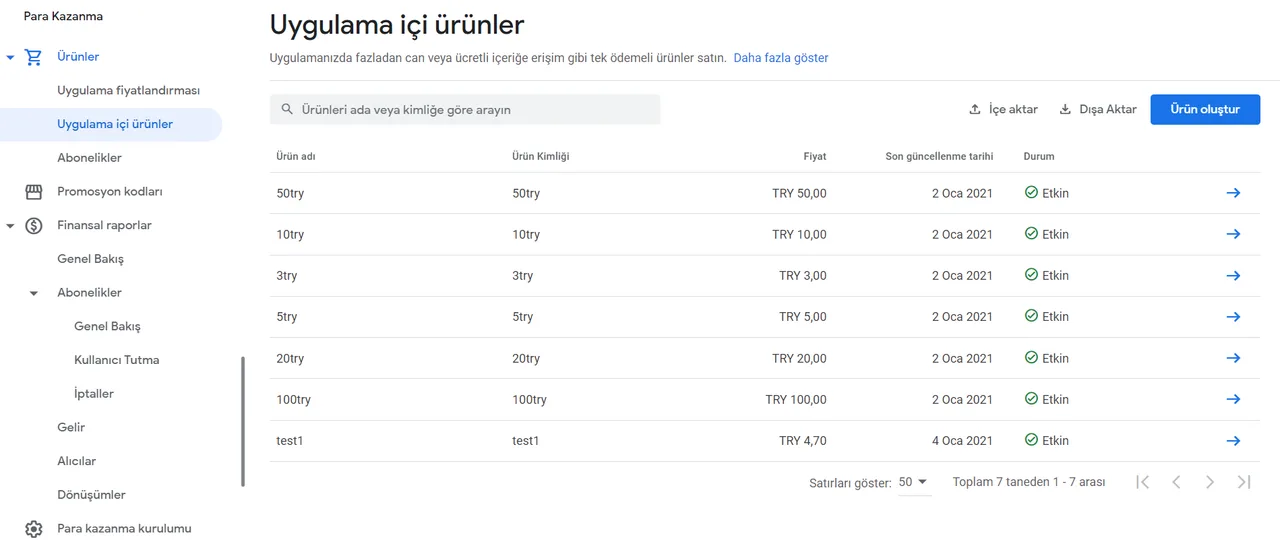
To use this for real, we need to build a signed APK and upload it to the closed testing track in Play Console. After uploading, the billing section opens and we can create our products. Here is a screenshot where I added purchase products:
Copy this code into a new page in your project and link to the page; it will work.
import * as RNIap from 'react-native-iap';const itemSkus = Platform.select({ ios: ['stackoverflow_ex'], android: ['stackoverflow_ex']});export default class Buy extends Component { state= { products:[], count:0 } async componentDidMount() { try { const products: Product[] = await RNIap.getProducts(itemSkus); this.setState({ products }); } catch(err) { console.warn(err); // standardized err.code and err.message available } } requestPurchase = async (sku: string) => { try { await RNIap.requestPurchase(sku, false); this.setState({ count:this.state.count+1 }); } catch (err) { console.warn(err.code, err.message); } } click = () => { this.requestPurchase('stackoverflow_ex') } render() { const {item} = this.props; return ( this.click()} /> ); }}
Comments 0
No comments yet. Be the first.
Leave a comment