React Native Setup 2023
Android and iOS apps from one codebase with React Native. An up-to-date setup guide for 2023.
React Native is a framework for building mobile apps for Android and iOS devices. It lets you ship the app you build to both iOS and Android directly, without changes, which saves you a lot of time.
If you want to install React Native, you can follow the steps below to complete the setup.
Creating a project and running it on a phone
If you made it this far without problems, it's time to create a project and run it.
Open a command prompt and run the following command with a name of your choice.
react-native init YourProjectName
This creates a folder at C:/YourProjectName. To create it under another folder, first go there with the cd command, then run react-native init YourProjectName.
If you get a permission error, run the following command.
set-executionpolicy remotesigned
Example: let's create a project on drive D
1st command:
cd D:Projelerim
2nd command:
react-native init YourProjectName
Assuming that's clear, let's move on.
After running the command and waiting for the files to be created, go into the project and run the Android command.
cd YourProjectName
react-native run-android
If you didn't make any mistakes, the app will run on your emulator or phone.
Note: To run it on a phone, enable Developer options, turn on USB debugging, and connect the phone to your computer with a USB cable.
Setting the environment variables
This is the most important part. We need to add environment variables to the system based on the paths you installed to; this is what lets the app open on your phone or emulator when you run it.
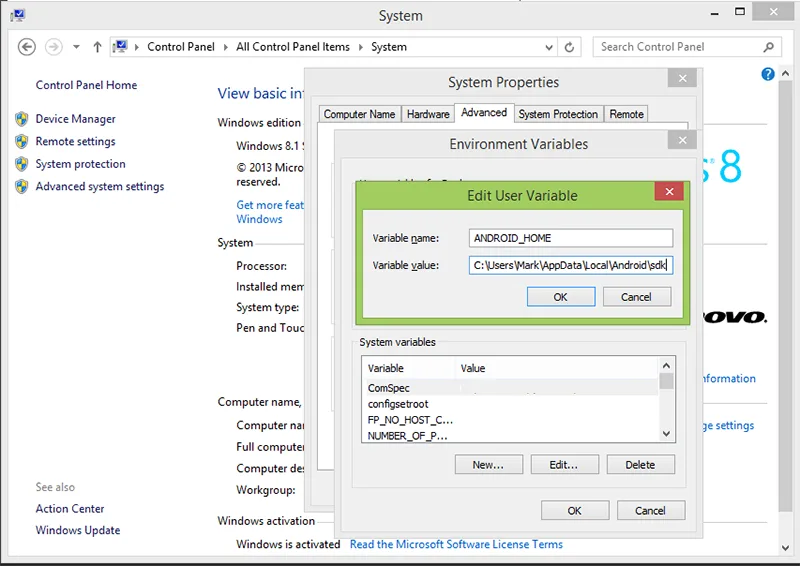
We need to add the Android_Home variable to the environment variables manually. Follow these steps:
Search for "Edit the system environment variables".
On the page that opens, click the Environment Variables button at the bottom.
In the System variables section, click New.
Enter ANDROID_HOME as the name, and as the value the path to the SDK folder where you installed Android Studio.
If you didn't change anything while installing Android Studio, your path will look like this:
C:Users YOUR_USERNAME AppData Local Android SDK
If you changed it, you'll need to find your SDK folder.
If you've done everything, you should be on a screen like the one in the image.
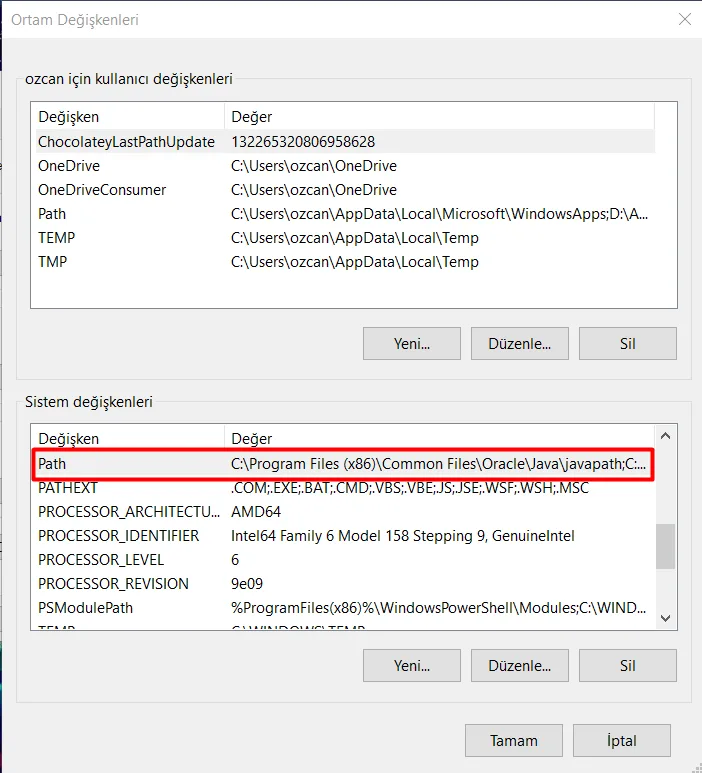
Click Path to open it.
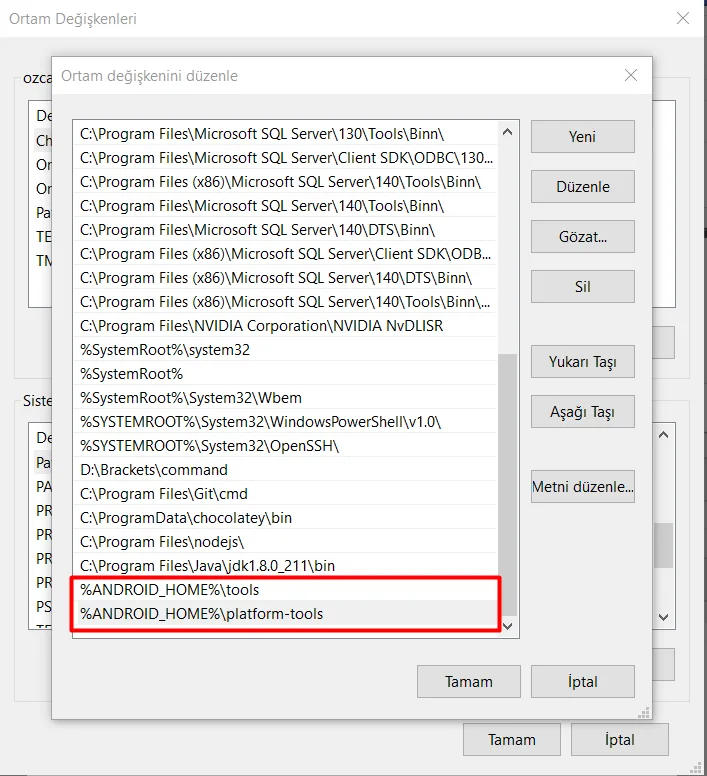
After double-clicking to open it, add:
%ANDROID_HOME%Tools
%ANDROID_HOME%platform-tools
The setup is complete.
Installing the Android Studio SDK
The SDK is normally installed along with Android Studio, but if you didn't choose that option, we need to do it manually.
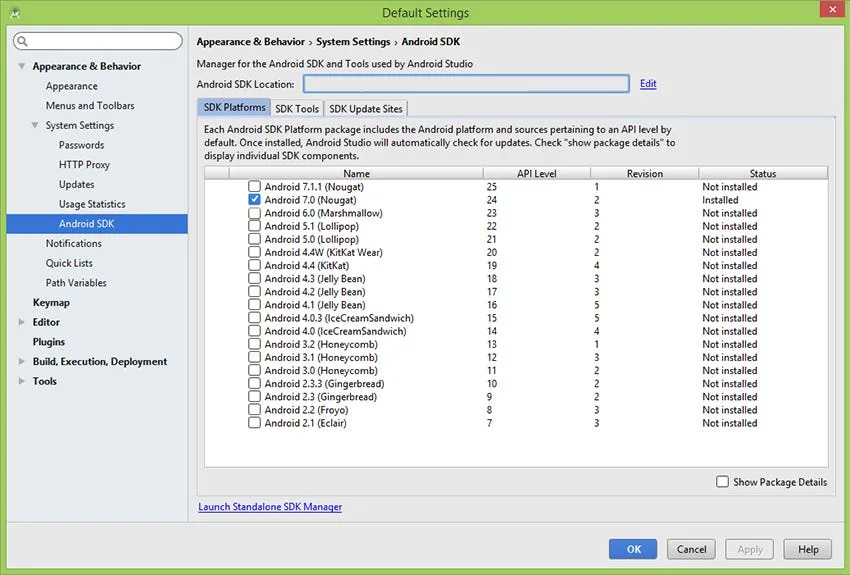
Open Android Studio and go to File - Settings - Appearance and Behavior - System Settings - Android SDK to check the SDK versions.
You should see a screen like the one below.
Installing the tools React Native needs
We need to install the following tools.
- Node JS: download
- Python: download
- Java: download
After installing them, open a command prompt and install React Native with the command below.
npm install -g react-native-cli
- Android Studio: download
Comments 0
No comments yet. Be the first.
Leave a comment